Your laptop will not boot. Maybe the operating system is corrupted, maybe you are selling the machine and need to erase the OS drive itself, or maybe you pulled a drive from an old desktop and need to wipe it before disposal. In any of these cases, you cannot rely on Windows or macOS tools to do the job — you need a method that works without an operating system. A 2023 Blancco study found that 42% of used drives sold on secondary markets still contained recoverable personal data, so skipping this step is a real risk.
Key Takeaways:
- Bootable USB tools let you wipe any drive without a working operating system — including the drive that normally hosts your OS
- DBAN and ShredOS are free and effective for HDDs, but they cannot properly erase SSDs due to wear leveling and over-provisioning
- For SSDs, use Parted Magic or BitRaser from a bootable USB — these tools issue firmware-level Secure Erase and Sanitize commands
- A single overwrite pass is sufficient for modern HDDs per NIST 800-88 Rev. 2 guidance
- You need a second working computer to create the bootable USB drive before you can wipe the target machine
When You Need to Wipe Without an OS
There are several scenarios where bootable USB wiping is the right approach — or the only option:
Wiping the OS drive itself. You cannot fully erase a drive while the operating system running on it is active. Windows locks the system drive, preventing any wipe tool from accessing every sector. Booting from a USB puts the wipe tool in control, with no OS protecting the target drive.
The OS is broken or missing. If the computer will not boot — due to corruption, malware, hardware failure, or because the OS was already removed — a bootable USB tool runs independently and does not need a working installation.
Wiping before selling or donating. When you want to hand over a clean machine with no trace of your data, a bootable wipe ensures nothing is left behind. This is the approach recommended in our complete guide to wiping a hard drive.
Decommissioning multiple drives. IT professionals pulling drives from old workstations or servers often wipe them in batches using a bootable environment on a single workstation.
What You Need Before Starting
Before you can wipe a drive without an OS, gather these items:
- A working computer — to download the wipe tool ISO and create the bootable USB
- A USB flash drive — 4 GB or larger (the drive will be erased during the process)
- A USB flashing tool — Rufus (Windows) or balenaEtcher (Windows/Mac/Linux)
- The wipe tool ISO — DBAN, ShredOS, Parted Magic, or BitRaser (see method comparisons below)
- Time — 2-8 hours for HDD overwriting depending on drive size; minutes for SSD firmware commands
- Patience — do not interrupt the wipe process once it starts
How to Create a Bootable USB Drive
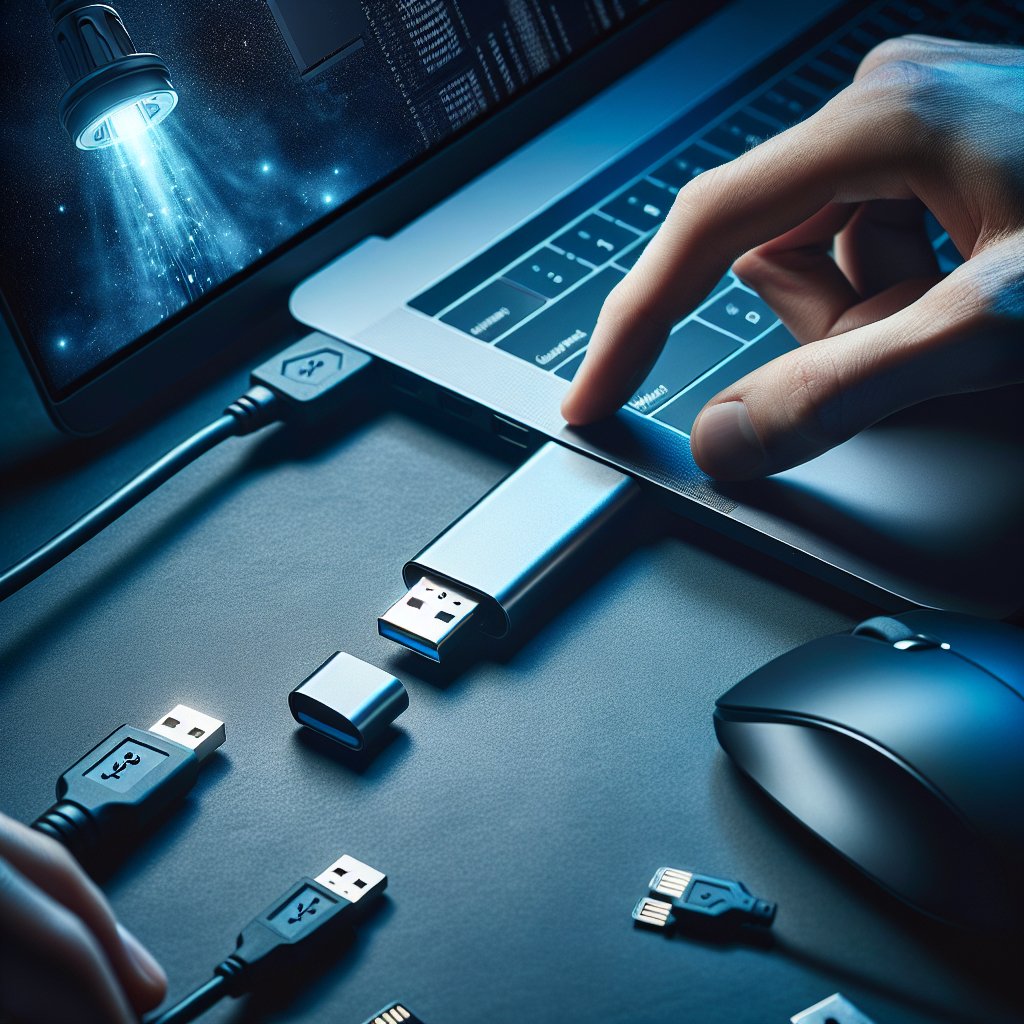
Every method in this guide starts the same way: creating a bootable USB on a working computer. Here is the process using Rufus (Windows) and balenaEtcher (cross-platform).
Using Rufus (Windows)
- Download Rufus from rufus.ie — it is free, portable, and does not require installation
- Download the ISO file for your chosen wipe tool (DBAN, ShredOS, Parted Magic, or BitRaser)
- Insert the USB flash drive into your working computer
- Open Rufus
- Under Device, select your USB flash drive — verify you are selecting the correct drive
- Under Boot selection, click SELECT and browse to the downloaded ISO file
- Partition scheme: Select MBR for older BIOS systems, or GPT for UEFI systems. If unsure, MBR works on most machines
- Leave other settings at defaults
- Click START and confirm the warning that all data on the USB drive will be destroyed
- Wait for the process to complete — typically 1-5 minutes
Using balenaEtcher (Windows/Mac/Linux)
- Download balenaEtcher from etcher.balena.io
- Open Etcher and click Flash from file — select your ISO
- Click Select target — choose your USB drive
- Click Flash and wait for it to complete
Etcher is simpler but offers fewer options. If you run into boot issues with Etcher-created drives, try Rufus instead.
How to Change BIOS Boot Order
Once the USB is ready, you need to tell the target computer to boot from it instead of the internal drive.
- Insert the bootable USB into the target computer
- Power on (or restart) the computer
- Press the boot menu key during startup. Common keys by manufacturer:
| Manufacturer | Boot Menu Key | BIOS Setup Key |
|---|---|---|
| Dell | F12 | F2 |
| HP | F9 | F10 |
| Lenovo | F12 | F2 or Fn+F2 |
| ASUS | F8 | F2 or Del |
| Acer | F12 | F2 or Del |
| MSI | F11 | Del |
| Gigabyte | F12 | Del |
- Select your USB drive from the boot menu
- If using the BIOS setup instead of a one-time boot menu, navigate to the Boot tab, set the USB drive as the first boot device, save changes (usually F10), and exit
Tip: If the USB drive does not appear in the boot menu, check whether Secure Boot is enabled in BIOS settings. Some bootable Linux tools require Secure Boot to be disabled. You can re-enable it after wiping.
Method 1: DBAN (Free — HDDs Only)
DBAN (Darik's Boot and Nuke) is the most widely recognized free bootable wipe tool. It boots into a minimal Linux environment and overwrites every addressable sector on the selected drives. DBAN has not been updated since 2015, but its core functionality — writing patterns to magnetic platters — has not changed.
Limitations: DBAN does not support UEFI-only systems (it requires Legacy/CSM boot), does not issue SSD firmware commands, and may not handle GPT disks larger than 2 TB in some configurations. For a full assessment, see our DBAN review.
Step-by-Step: Wiping with DBAN
- Download the DBAN ISO from dban.org and create a bootable USB (see above)
- Boot the target computer from the USB
- At the DBAN boot screen, press Enter to start interactive mode
- Use arrow keys to highlight the drive you want to wipe — verify by checking the model number and capacity
- Press Space to select the drive (an asterisk marks it as selected)
- Press M to choose the erasure method:
- Quick Erase — single-pass zeros (fastest, sufficient per NIST guidance)
- PRNG Stream — single-pass random data
- DoD Short — 3-pass (zeros, ones, random) — unnecessary for modern drives but still offered
- Press R to set rounds — leave at 1 (one pass is enough for modern HDDs)
- Press V to set verification — select Verify Last Pass for confirmation that the overwrite completed
- Press F10 to begin the wipe
- Wait for the process to complete. DBAN displays PASS next to each drive when finished
Warning: DBAN erases everything on selected drives permanently. Disconnect any drives you want to keep before booting, or be extremely careful with drive selection.
Bottom Line: DBAN is a proven, free option for wiping traditional HDDs without an OS. It is simple, effective, and sufficient for personal use. If you need UEFI support, SSD erasure, or certificates of erasure, use one of the methods below instead.
Method 2: ShredOS / nwipe (Free — HDDs Only)
ShredOS is the actively maintained successor to DBAN, built around the nwipe disk-wiping engine. It supports UEFI boot, modern hardware, and offers the same multi-method overwriting that DBAN provides — plus ongoing updates and bug fixes.
Like DBAN, ShredOS handles HDD overwriting but does not issue SSD firmware commands. For the full comparison, see our ShredOS/nwipe review.
Step-by-Step: Wiping with ShredOS
- Download the latest ShredOS image from the ShredOS GitHub repository
- Create a bootable USB using Rufus or Etcher
- Boot the target computer from the USB
- ShredOS loads directly into the nwipe interface — no menu navigation required
- Use arrow keys to highlight the target drive and press Space to select it
- Press M to choose a method — Fill with Zeros or PRNG Stream for a single-pass wipe
- Press V to enable verification
- Press Shift+S (capital S) to start the wipe
- Monitor progress on screen. nwipe displays throughput, percentage complete, and estimated time remaining
- When finished, nwipe shows a summary with pass/fail status for each drive
ShredOS is the better choice over DBAN for any machine built after 2015, especially those with UEFI-only firmware.
Method 3: Parted Magic (Paid — HDDs and SSDs)
Parted Magic is a paid ($15 one-time purchase) bootable Linux environment that includes both nwipe for HDD overwriting and graphical tools for ATA Secure Erase and NVMe Sanitize — making it one of the few bootable options that handles both HDDs and SSDs properly.
Step-by-Step: Wiping with Parted Magic
- Purchase and download Parted Magic from partedmagic.com
- Create a bootable USB using Rufus or Etcher
- Boot the target computer from the USB
- Parted Magic loads a full Linux desktop environment
For HDDs:
- Open Disk Eraser (nwipe) from the desktop or applications menu
- Select your target drive and choose your overwrite method
- Start the wipe and wait for completion
For SSDs:
- Open Erase Disk from the system tools menu
- Select Internal: Secure Erase command writes zeroes to entire data area (for SATA SSDs) or the appropriate NVMe option
- If the drive shows as "frozen," Parted Magic can attempt an automatic unfreeze (typically by putting the system to sleep briefly)
- Select the target drive and confirm
- The firmware-level command executes — typically completing in under two minutes
Parted Magic is the sweet spot between free command-line tools and expensive enterprise solutions. For detailed SSD erasure steps using firmware commands, see our SSD secure erase guide.
Method 4: BitRaser Drive Eraser (Paid — HDDs, SSDs, and Certificates)
BitRaser Drive Eraser is a commercial bootable solution starting at $39 per drive. It supports HDD overwriting, SSD firmware commands (ATA Secure Erase, NVMe Sanitize, crypto erase), and generates tamper-proof PDF certificates of erasure — required for compliance with HIPAA, GDPR, PCI DSS, and other regulations.
Step-by-Step: Wiping with BitRaser
- Purchase BitRaser Drive Eraser from stellarinfo.com
- Download the BitRaser ISO and create a bootable USB
- Boot the target computer from the USB
- BitRaser loads its interface and detects all connected drives
- Select the target drive(s) — BitRaser displays model, serial number, capacity, and type (HDD/SSD)
- Choose an erasure standard (NIST 800-88, IEEE 2883, DoD 5220.22-M, or others)
- Click Erase and confirm
- BitRaser automatically selects the appropriate method: overwrite for HDDs, firmware commands for SSDs
- After completion, BitRaser generates a certificate of erasure with the drive serial number, method used, and verification result
BitRaser is the right choice when you need documented proof that a drive was properly sanitized — for audit trails, regulatory compliance, or organizational policy. See our best data erasure software roundup for a full comparison of commercial options.
Method 5: Linux Live USB with Manual Commands
If you are comfortable with the Linux command line, a standard Linux live USB (such as Ubuntu) gives you direct access to powerful erasure commands without needing a dedicated wipe tool.
For HDDs (Using shred or dd)
- Boot from an Ubuntu live USB (select "Try Ubuntu" at the startup screen)
- Open a terminal
- Identify the target drive:
sudo lsblk -o NAME,SIZE,MODEL,TYPE- Wipe using
shred(one random pass plus a zero pass):
sudo shred -vfz -n 1 /dev/sdXOr using dd (single zero-fill pass):
sudo dd if=/dev/zero of=/dev/sdX bs=4M status=progressReplace /dev/sdX with your actual drive identifier. Triple-check this — there is no undo.
For SATA SSDs (Using hdparm)
- Boot from a Linux live USB and open a terminal
- Install hdparm if not present:
sudo apt install hdparm - Check Secure Erase support:
sudo hdparm -I /dev/sdX | grep -i security - If the drive is frozen, suspend and wake the system:
sudo systemctl suspend - Set a temporary password:
sudo hdparm --user-master u --security-set-pass Erase /dev/sdX - Issue Secure Erase:
sudo hdparm --user-master u --security-erase Erase /dev/sdX - Verify:
sudo hdparm -I /dev/sdX | grep -i security— should show "not enabled"
For NVMe SSDs (Using nvme-cli)
- Boot from a Linux live USB and open a terminal
- Install nvme-cli:
sudo apt install nvme-cli - List NVMe drives:
sudo nvme list - Check Sanitize support:
sudo nvme id-ctrl /dev/nvme0 -H | grep -i sanitize - Run Sanitize with Block Erase:
sudo nvme sanitize /dev/nvme0n1 --sanact=2 - Monitor progress:
sudo nvme sanitize-log /dev/nvme0n1
For full details on SSD firmware commands, see our SSD secure erase guide.
Method 6: Connect the Drive to Another Computer
If you have a working computer available, you can physically remove the target drive and connect it as a secondary drive. This lets you wipe it using any software tool from within a running operating system — no bootable USB required.
What You Need
- A SATA-to-USB adapter, USB docking station, or external drive enclosure (for 2.5" or 3.5" SATA drives)
- An NVMe-to-USB enclosure (for M.2 NVMe drives)
- A working computer with an available USB port
Steps
- Power off both computers and disconnect them from power
- Remove the target drive from its original computer
- Connect the target drive to the working computer using your adapter or enclosure
- Power on the working computer — the target drive should appear as an external drive
- Wipe the drive using DiskPart (
clean all), a third-party tool, or Linux commands as described in our Windows 11 wipe guide - After wiping, disconnect the drive and either reinstall it in the original machine or dispose of it
This method is especially useful when the target computer itself is broken or unavailable, or when you have pulled multiple drives from decommissioned machines and want to wipe them from a single workstation.
HDD vs. SSD: Choosing the Right Bootable Method
This distinction is critical. Using the wrong method on the wrong drive type can leave your data exposed.
| Factor | HDD | SSD |
|---|---|---|
| Overwrite tools (DBAN, ShredOS, dd, shred) | Effective — one pass is sufficient | Unreliable — wear leveling and over-provisioning leave data in unreachable cells |
| Firmware commands (Secure Erase, Sanitize) | Not needed (overwrite works fine) | Required — the only way to reach all NAND cells |
| Free bootable options | DBAN, ShredOS, Linux live USB | Linux live USB with hdparm/nvme-cli (requires command-line skill) |
| Paid bootable options | Parted Magic, BitRaser | Parted Magic, BitRaser |
| Certificate of erasure | BitRaser only | BitRaser only |
| Time for 1 TB drive | 2-4 hours | Under 5 minutes |
If you are unsure whether your drive is an HDD or SSD, check the drive label or model number. HDDs typically include "HDD" in the model or reference platter capacity (e.g., 7200 RPM). SSDs reference "SSD," "NVMe," or "M.2" in their model names.
Common Mistakes to Avoid
Running DBAN or ShredOS on an SSD. These tools overwrite at the software level, which cannot reach all data on flash storage. The wipe will appear to complete successfully, but data may remain in over-provisioned areas and remapped cells. For SSDs, use Parted Magic, BitRaser, or Linux firmware commands.
Selecting the wrong drive. Bootable wipe tools show all connected drives. If your computer has multiple drives, disconnecting the ones you want to keep before booting is the safest approach. Alternatively, verify the model name and capacity of each drive before selecting.
Forgetting to change boot order. If the computer boots to a "No operating system found" error or tries to load a broken OS instead of your USB, you need to enter the BIOS boot menu and prioritize the USB drive.
Flashing the ISO incorrectly. Simply copying the ISO file to a USB drive does not make it bootable. You must use a flashing tool like Rufus or balenaEtcher to write the ISO properly.
Interrupting the wipe process. A partial wipe is worse than no wipe — it creates a false sense of security. Let the process run to completion. For HDD overwrites, this means several hours for large drives.
Assuming one method fits all drives. The right approach depends on whether you have an HDD or SSD, whether you need a certificate, and your comfort level with command-line tools. Use the comparison table above to match your situation.
Frequently Asked Questions
Can I wipe a hard drive without an operating system?
Yes. Bootable USB tools like DBAN, ShredOS, Parted Magic, and BitRaser run independently of any installed OS. You create the bootable USB on another computer, boot the target machine from it, and wipe the drive from that standalone environment.
What is the best free bootable drive wipe tool?
For HDDs, ShredOS is the best free option in 2026. It is actively maintained, supports UEFI boot, and uses nwipe for multiple erasure methods with verification. DBAN is another free option but has not been updated since 2015 and lacks UEFI support. Neither tool properly erases SSDs.
Can DBAN wipe an SSD?
DBAN can write data to an SSD, but it cannot securely erase one. DBAN uses software-based overwriting, which cannot reach data stored in over-provisioned areas or cells remapped by the flash translation layer. For SSDs, use a tool that issues firmware-level Secure Erase or Sanitize commands, such as Parted Magic or BitRaser.
How do I change the boot order in BIOS to boot from USB?
Restart the computer and press the BIOS key during startup — typically F2, F12, Del, or Esc depending on your manufacturer. Navigate to the Boot tab, move the USB drive to the top of the boot order, save changes, and exit. Alternatively, most systems have a one-time boot menu accessible via F12 or F8.
Do I need a second computer to create a bootable USB?
Yes. You need a working computer to download the ISO file and write it to a USB flash drive using a tool like Rufus or balenaEtcher. The target computer — the one whose drive you want to wipe — boots from the finished USB drive.
How long does it take to wipe a hard drive from a bootable USB?
A single-pass overwrite on a 1 TB HDD typically takes 2-4 hours depending on drive speed and USB performance. SSD firmware-level commands complete in seconds to minutes. Multi-pass HDD methods take proportionally longer, though one pass is sufficient per NIST 800-88 guidance.
Can I wipe my OS drive while Windows is still running?
No. Windows locks the drive it runs from, preventing any tool from fully overwriting it. To wipe the OS drive, you must either boot from a USB tool like DBAN or ShredOS, or physically remove the drive and connect it to another computer as a secondary drive.
What size USB drive do I need for a bootable wipe tool?
Most bootable wipe tools require very little space. DBAN and ShredOS each need less than 1 GB. Parted Magic requires about 2 GB. BitRaser needs approximately 2 GB. Any USB flash drive of 4 GB or larger will work for all of these tools.
Is Rufus or balenaEtcher better for creating a bootable USB?
Both work well. Rufus is Windows-only, offers more configuration options (partition scheme, file system, boot mode), and handles both BIOS and UEFI systems easily. balenaEtcher is simpler and works on Windows, macOS, and Linux, but offers fewer customization options. Either will produce a working bootable USB.
Can I wipe multiple drives at once from a bootable USB?
Yes. Tools like DBAN, ShredOS (nwipe), and BitRaser allow you to select multiple drives for simultaneous wiping. This is especially useful for IT professionals decommissioning several machines. Be extremely careful to select only the drives you intend to wipe.
The Bottom Line
Wiping a drive without an OS comes down to booting from USB and picking the right tool for your drive type. Use DBAN or ShredOS for HDDs — they are free and a single pass is all you need. For SSDs, use Parted Magic or BitRaser Drive Eraser to issue firmware-level commands that actually reach all stored data. If you need a certificate of erasure for compliance, BitRaser is the only bootable option that provides one.
Last updated: February 2026. We regularly review and update our guides to ensure accuracy.
Sources:
- NIST Special Publication 800-88 Rev. 2, Guidelines for Media Sanitization (September 2025). https://csrc.nist.gov/publications/detail/sp/800-88/rev-2/final
- Blancco Technology Group, "Privacy for Sale: Data Security Risks in the Second-Hand IT Asset Marketplace" (2023). https://www.blancco.com/resources/privacy-for-sale/
- ShredOS GitHub Repository (nwipe-based bootable disk eraser). https://github.com/PartialVolume/shredos.x86_64
- DBAN (Darik's Boot and Nuke) Official Site. https://dban.org/
- Rufus — Create Bootable USB Drives. https://rufus.ie/