In 2023, a UK-based IT recycler purchased a batch of 200 used enterprise SSDs and found recoverable corporate data on over 40% of them — including SSDs that had been "formatted" before disposal. If you own a Kingston SSD and need to erase it for resale, recycling, or decommissioning, Kingston provides a free tool that handles this properly. Kingston SSD Manager issues firmware-level erase commands that reach every NAND cell on the drive, including areas that standard formatting and file deletion cannot touch.
Key Takeaways:
- Kingston SSD Manager is a free Windows utility that performs firmware-level Secure Erase on all Kingston SSDs
- The target Kingston SSD cannot be your Windows boot drive — connect it as a secondary drive or use an external adapter
- SATA Kingston SSDs may enter a "frozen" state that blocks the erase — a sleep/wake cycle fixes this
- NVMe Kingston SSDs (KC3000, NV2, FURY Renegade) use the NVMe Sanitize command, which is faster and more reliable than ATA Secure Erase
- For TCG Opal self-encrypting Kingston drives, PSID Revert provides an alternative erasure path using the Physical Security ID on the drive label
What Kingston SSD Manager Does
Kingston SSD Manager (KSM) is a free drive management utility from Kingston Technology. It provides health monitoring, firmware updates, and — most relevant here — a Secure Erase function that wipes your Kingston SSD at the firmware level.
When you run Secure Erase through KSM, the tool does not simply overwrite the drive with zeros from the operating system level. Instead, it sends a direct command to the drive's controller firmware:
- SATA Kingston SSDs (A400, KC600, UV500): KSM issues an ATA Secure Erase command, which instructs the controller to reset every NAND cell, including over-provisioned space and remapped blocks that software-based overwriting cannot reach.
- NVMe Kingston SSDs (KC3000, NV2, FURY Renegade, KC2500): KSM issues an NVMe Sanitize command with Block Erase, which performs the equivalent operation using the NVMe command set.
This distinction matters. Standard software overwriting on an SSD leaves data in wear-leveled cells, over-provisioned areas, and blocks managed by the flash translation layer. Firmware-level commands bypass these limitations because the controller itself handles the erase across all physical NAND. For a full explanation of why this matters, see our guide to secure erasing SSDs.
KSM also supports PSID Revert for Kingston drives that implement TCG Opal (a hardware encryption standard). We cover that separately below.
Compatible Kingston SSD Models
Kingston SSD Manager works with all Kingston-branded SSDs. Here are the current and recent models that support Secure Erase:
NVMe drives:
- Kingston FURY Renegade (PCIe 4.0)
- Kingston KC3000 (PCIe 4.0)
- Kingston NV2 (PCIe 4.0)
- Kingston NV1 (PCIe 3.0, discontinued but still supported)
- Kingston KC2500 (PCIe 3.0)
SATA drives:
- Kingston A400 (2.5" SATA, Kingston's most popular budget SSD)
- Kingston KC600 (2.5" SATA)
- Kingston UV500 (2.5" SATA, M.2, mSATA)
- Kingston DC600M (data center SATA)
- Kingston DC500R/DC500M (data center)
Legacy models like the UV400, A1000, and HyperX Savage are also recognized by KSM if you still have one in service.
KSM does not work with non-Kingston SSDs. If you need to erase a Samsung, WD, Crucial, or other brand, you will need that manufacturer's utility or a third-party tool like BitRaser Drive Eraser.
What You Need Before Starting
Before you begin the Secure Erase process, make sure you have the following:
-
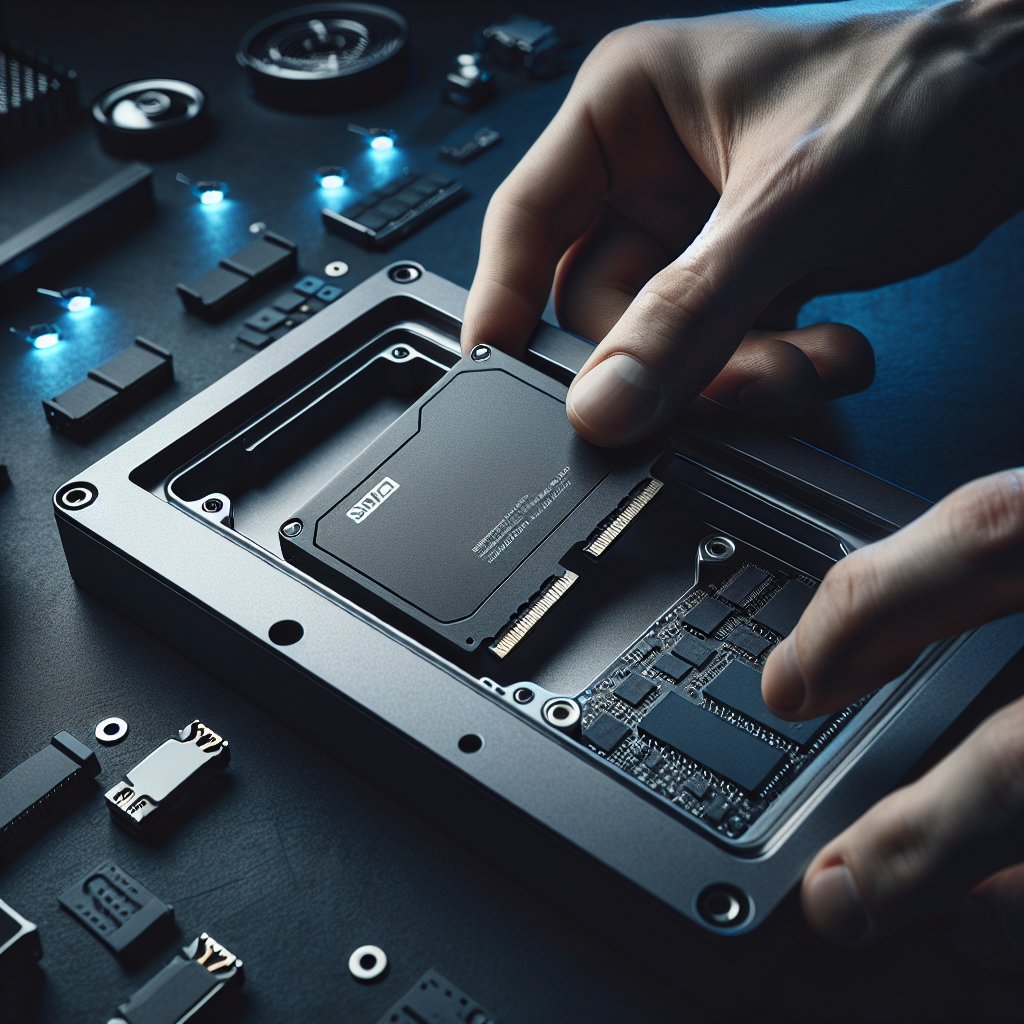
A Kingston SSD that is NOT your boot drive. KSM cannot erase the drive Windows is running from. If the Kingston SSD is your only drive, you will need to connect it as a secondary drive in another system, use a USB-to-SATA adapter or USB-to-NVMe enclosure, or boot from a different disk.
-
Kingston SSD Manager installed. Download the latest version from Kingston's official support page. The installer is a standard Windows executable. Requires Windows 7 or later.
-
Administrator privileges. Right-click the KSM shortcut and select "Run as administrator." Secure Erase will fail without elevated permissions.
-
A backup of any data you want to keep. Secure Erase is permanent and irreversible. Verify your backup before proceeding.
-
AHCI mode enabled in BIOS (for SATA drives). If your BIOS is set to RAID or IDE/Legacy mode, switch to AHCI. NVMe drives are not affected by this setting.
Bottom Line: Kingston SSD Manager is the simplest and most reliable way to wipe a Kingston SSD — it is free, sends proper firmware-level commands, and works with every Kingston model. The only catch is that the target drive cannot be your boot disk, and SATA drives may need a sleep/wake workaround for the frozen state.
Step-by-Step: Secure Erase with Kingston SSD Manager
For NVMe Kingston SSDs (KC3000, NV2, FURY Renegade)
NVMe drives are easier to erase because they do not suffer from the SATA "frozen" state issue.
-
Install and launch Kingston SSD Manager as administrator. The tool will scan for connected Kingston drives.
-
Select your Kingston NVMe SSD from the drive list on the left panel. Confirm it is the correct drive by checking the model number and capacity.
-
Click the "Security" tab in the main panel. You will see the Secure Erase option.
-
Click "Secure Erase." KSM will display a warning that all data on the drive will be permanently destroyed. Read the warning carefully.
-
Confirm the operation. KSM will ask you to type a confirmation phrase or check a box to proceed.
-
Wait for the erase to complete. NVMe Sanitize with Block Erase typically finishes in a few seconds to under two minutes, regardless of drive capacity.
-
Verify completion. KSM will display a success message. The drive should now show as empty with its full factory capacity available.
For SATA Kingston SSDs (A400, KC600, UV500)
SATA drives require one extra step to handle the frozen security state.
-
Install and launch Kingston SSD Manager as administrator.
-
Select your Kingston SATA SSD from the drive list.
-
Click the "Security" tab. Check the Security Status field. If it says "Frozen," the Secure Erase button will be grayed out. Proceed to step 4. If it says "Not Frozen," skip to step 5.
-
Unfreeze the drive. Put your computer to sleep (Start > Power > Sleep), wait a few seconds, then wake it by pressing any key or the power button. Reopen Kingston SSD Manager — the Security Status should now show "Not Frozen." If it still shows Frozen, try a different approach: shut down, disconnect and reconnect the SATA data cable while the system is powered off, then boot back up. Some BIOS configurations re-freeze the drive on every boot, which requires hot-plug workarounds or disabling the drive in BIOS settings.
-
Click "Secure Erase." KSM sends the ATA Secure Erase command to the drive controller.
-
Confirm the operation when prompted.
-
Wait for the erase to complete. ATA Secure Erase on SATA SSDs usually takes under two minutes.
-
Verify completion. KSM confirms success. The drive is now in a factory-fresh state.
PSID Revert for TCG Opal Drives
Some Kingston SSDs — particularly the UV500, KC600, and DC500 series — support TCG Opal, a hardware-based self-encryption standard. For these drives, Kingston SSD Manager offers a second erasure method: PSID Revert.
PSID Revert performs a cryptographic erase. Instead of resetting individual NAND cells, it destroys the internal encryption key that protects all data on the drive. Without the key, the encrypted data becomes permanently unreadable — even if someone extracted the raw NAND chips.
To use PSID Revert:
-
Locate the PSID (Physical Security ID) printed on a label on the physical drive itself. It is a 32-character alphanumeric string. You need physical access to the drive to read it.
-
Open Kingston SSD Manager and select the TCG Opal-capable drive.
-
Navigate to the Security tab and select "PSID Revert."
-
Enter the 32-character PSID exactly as printed on the drive label.
-
Confirm the operation. The crypto erase completes almost instantly — typically under one second.
PSID Revert is useful when a drive is locked by a previous user's password and you cannot access it through normal means. It is also a valid Purge-level sanitization method under NIST 800-88 when the drive's encryption implementation meets the standard's requirements.
Common Issues and Troubleshooting
Drive Shows as "Frozen"
This is the most common problem with SATA Kingston SSDs. The system BIOS sends a Security Freeze Lock command during POST, preventing any security commands until the next power cycle. The sleep/wake method described above works on most systems. If it does not:
- Try hot-plugging: power on the system, then connect the SATA data cable to the SSD (requires the drive to have power already connected). This bypasses the BIOS freeze.
- Check if your BIOS has a setting to disable the ATA security freeze. Some business-class motherboards expose this option.
- Boot from a Linux live USB and use
hdparmto issue the secure erase command directly.
KSM Does Not Detect the Drive
- Verify the drive is a Kingston-branded SSD. KSM will not show third-party drives.
- Check physical connections. Reseat the M.2 module or SATA cables.
- Make sure you have the latest version of KSM — older versions may not recognize newer models like the KC3000 or NV2.
- Run KSM as administrator. Without elevated privileges, some drives may not appear.
Secure Erase Fails or Hangs
- Power cycle the system and try again. A failed erase attempt can leave the drive in a transitional security state.
- Update the drive firmware through KSM before retrying.
- If the drive repeatedly fails to erase, it may have a hardware problem. Contact Kingston support.
Drive Is the Boot Disk
KSM cannot erase a drive that Windows is using as its system volume. Your options:
- Move the Kingston SSD to another computer as a secondary drive.
- Use a USB-to-SATA adapter or NVMe enclosure to connect it externally to a different machine.
- Boot from a Linux live USB and use
nvme-cli(for NVMe) orhdparm(for SATA) command-line tools.
Limitations of Kingston SSD Manager
KSM is an effective tool, but it has limitations worth knowing:
Windows only. There is no macOS or Linux version. If you run Linux or macOS, you will need command-line tools (hdparm, nvme-cli) or a third-party utility instead.
Kingston drives only. If you manage a mixed fleet of SSDs from different manufacturers, you need a separate tool for each brand — or a universal solution like BitRaser Drive Eraser that works across all makes and models.
No erasure certificate. KSM does not generate a tamper-proof certificate of erasure. For compliance with HIPAA, GDPR, PCI DSS, or other regulations that require documented proof of data destruction, you will need a tool that provides certified erasure reports. BitRaser and Blancco are the primary options for compliance-grade documentation.
Cannot erase boot drives. As covered above, the target drive must be a secondary disk. This is a limitation shared by all Windows-based manufacturer utilities, not unique to KSM.
No verification pass. KSM does not perform a post-erase verification scan to confirm all sectors return zeros. The firmware reports success, but there is no independent confirmation from the software side.
For a broader look at your options, see our best data erasure software roundup and our complete guide to wiping a hard drive.
Frequently Asked Questions
Is Kingston SSD Manager free?
Yes. Kingston SSD Manager is a free download from Kingston's website. There is no license fee, subscription, or hidden cost. It runs on Windows 7 through Windows 11 and requires administrator privileges to access the Secure Erase function.
Can I secure erase my boot drive with Kingston SSD Manager?
No. KSM runs within Windows and cannot erase the drive that the operating system is loaded from. Connect the Kingston SSD as a secondary drive in another system, use a USB adapter, or boot from a Linux live USB to erase a drive that was previously used as a boot disk.
What is the frozen drive state and how do I fix it?
The frozen state is a SATA security feature where the BIOS locks security commands during startup. KSM will show the drive status as "Frozen" and gray out the Secure Erase button. Put your computer to sleep and wake it to clear the freeze. If that fails, try hot-plugging the SATA cable after the system has booted.
Does Kingston SSD Manager work with non-Kingston SSDs?
No. KSM is designed exclusively for Kingston-branded drives. It will not detect or manage SSDs from Samsung, Western Digital, Crucial, Intel, or any other manufacturer. For a tool that works across all SSD brands, BitRaser Drive Eraser and Parted Magic are popular options.
What is the difference between Secure Erase and PSID Revert?
Secure Erase sends a firmware command (ATA Secure Erase or NVMe Sanitize) that resets all NAND cells to their erased state. PSID Revert is for TCG Opal self-encrypting drives — it destroys the internal encryption key using the Physical Security ID printed on the drive, making all encrypted data permanently unreadable. Both achieve data destruction, but through different mechanisms.
How long does Kingston SSD Manager Secure Erase take?
NVMe drives typically complete in seconds. SATA drives finish in under two minutes. The speed comes from the fact that firmware-level erase commands reset NAND cells electrically rather than writing data to every sector. Drive capacity has minimal impact on erase time.
Will Secure Erase fix a slow Kingston SSD?
A secure erase resets all NAND cells to an empty state, which can restore write performance that degraded over time due to accumulated garbage collection overhead. It essentially returns the drive to its out-of-box performance level. However, it will not fix slowdowns caused by firmware bugs, SATA interface bottlenecks, or hardware failure.
Does Secure Erase void my Kingston warranty?
No. Kingston provides KSM specifically for operations like Secure Erase and firmware updates. Using the tool as intended does not void the warranty. A single secure erase counts as one program/erase cycle, which has negligible impact on the drive's rated endurance.
Can I recover data after a Kingston SSD Secure Erase?
No. A completed firmware-level Secure Erase resets all NAND flash cells, including over-provisioned space and remapped blocks that are invisible to the operating system. No commercially available data recovery software or service can retrieve data after a successful Secure Erase or NVMe Sanitize operation.
Which Kingston SSD models support Secure Erase?
All current Kingston consumer and enterprise SSDs support Secure Erase through KSM. This includes the FURY Renegade, KC3000, NV2, A400, KC600, UV500, and data center models like the DC600M. Legacy models such as the UV400, A1000, and HyperX Savage are also supported as long as KSM detects them.
The Bottom Line
Kingston SSD Manager is the right tool if you own a Kingston SSD and need to wipe it securely. It is free, handles both SATA and NVMe drives with the correct firmware-level commands, and supports PSID Revert for TCG Opal models. Just remember: the drive cannot be your boot disk, and you will not get an erasure certificate for compliance purposes. For non-Kingston drives or documented proof of erasure, check our best data erasure software roundup.
Last updated: February 2026. We regularly review and update our guides to ensure accuracy.
Sources:
- Kingston SSD Manager download and documentation. https://www.kingston.com/unitedstates/us/support/technical/ssdmanager
- Kingston Technology SSD product specifications. https://www.kingston.com/unitedstates/ssd
- NIST Special Publication 800-88 Rev. 2: Guidelines for Media Sanitization. https://csrc.nist.gov/publications/detail/sp/800-88/rev-2/final
- NVMe Specification — Sanitize command. https://nvmexpress.org/specifications/
- TCG Opal SSC Specification. https://trustedcomputinggroup.org/resource/storage-work-group-storage-security-subsystem-class-opal/
- ATA/ATAPI Command Set — Security Feature Set. https://www.t13.org/