A hard drive that will not power on, clicks repeatedly, or refuses to appear in your system's BIOS still contains every file that was on it when it died. Professional data recovery labs routinely extract data from mechanically failed drives — they can disassemble the platters in a cleanroom and read them directly. If your dead drive held tax returns, medical records, client data, or login credentials, that information is sitting on the platters waiting for anyone with the right equipment to retrieve it.
Key Takeaways:
- A dead hard drive still contains fully recoverable data — mechanical failure does not erase the platters or flash chips
- Try connecting a "dead" drive as a secondary drive or via USB enclosure before assuming software erasure is impossible
- Degaussing destroys data on HDDs by scrambling magnetic fields, but has zero effect on SSDs
- Physical destruction (drilling, shredding) must go through every platter, not just the drive casing
- NAID AAA-certified destruction services provide documented proof of destruction for compliance
Why a Dead Drive Is Still a Data Risk
When a hard drive "dies," the failure is almost always in the mechanical or electronic components — the read/write heads, the motor, the circuit board, or the controller chip. The platters themselves, where your data is magnetically encoded, are typically undamaged. This is exactly why data recovery works: labs replace the failed components and read the intact platters.
The same principle that makes data recovery possible makes dead drives a security problem. A 2019 study by Ontrack found that 72% of drives sent in for recovery yielded usable data, including drives that had been dropped, water-damaged, or involved in fires. If a professional lab can get your data off a dead drive, so can anyone else willing to invest a few hundred dollars in recovery services.
The NIST 800-88 Rev. 2 standard addresses this directly. Its "Destroy" category exists specifically for media that cannot be sanitized through software methods — including dead, failing, or damaged drives. The standard recommends physical destruction techniques that render the storage media unreadable and unrecoverable.
The bottom line: a dead drive is not a wiped drive. You need to address the data on it before the drive leaves your possession.
Step 1: Check Whether the Drive Really Is Dead
Before moving to physical destruction, verify that the drive is actually beyond software erasure. Many drives that appear dead from the user's perspective are actually functional at the hardware level — they just cannot boot an operating system.
Connect as a Secondary Drive
- Remove the drive from the original computer
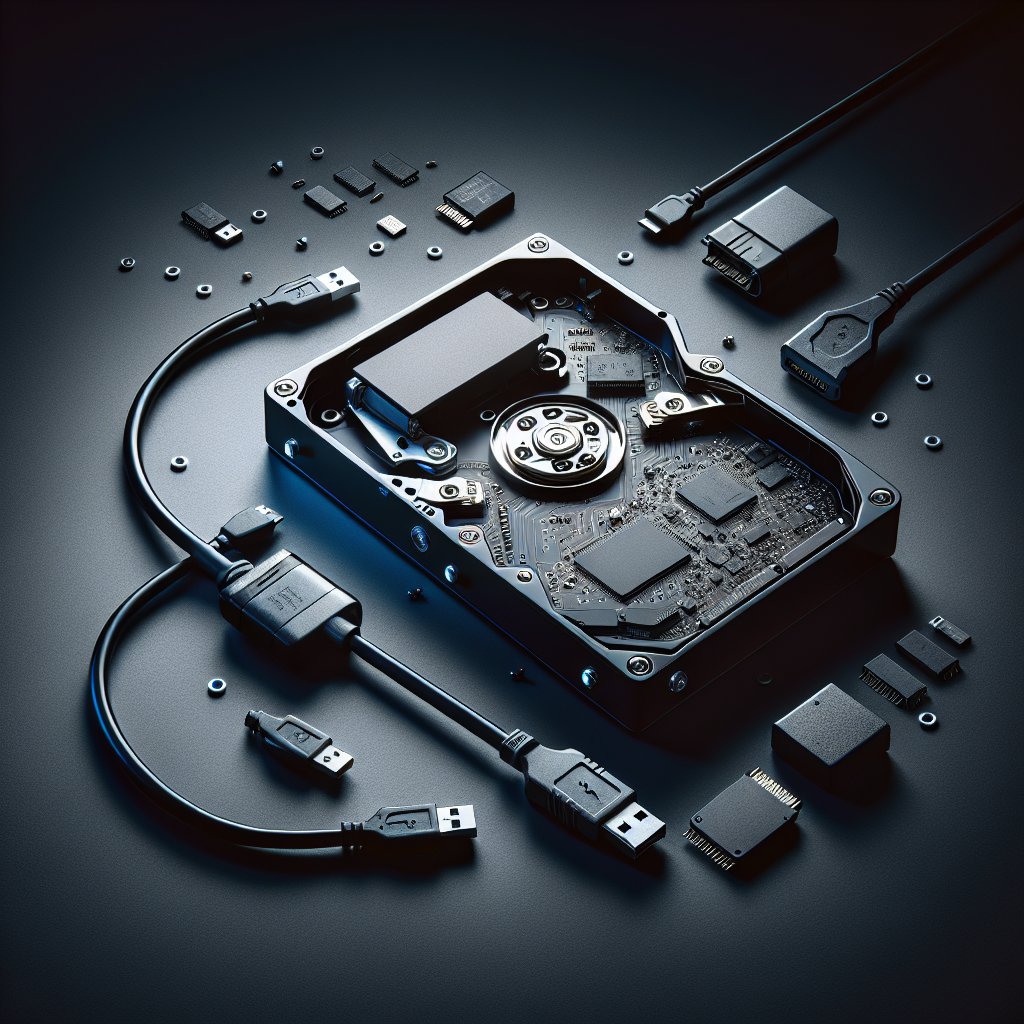
- Connect it to a working computer using a USB-to-SATA adapter, external docking station, or internal SATA cable
- Power on the working computer and check if the drive appears in BIOS/UEFI, Disk Management (Windows), Disk Utility (macOS), or
lsblk(Linux) - If the drive is detected — even if it shows errors or an unreadable file system — you can attempt a software wipe
A drive that will not boot Windows may work perfectly fine as a secondary drive. The operating system installation may be corrupt, but the hardware is functional. USB docking stations are inexpensive ($15–30) and let you connect bare SATA or IDE drives via USB without opening a second computer.
Listen for Signs of Life
When you power the drive:
- Spinning sound with no clicking: The motor works. The drive may have firmware corruption or a degraded controller, but the platters are spinning and the data is intact. Try a different SATA port, cable, or enclosure.
- Repeated clicking (click of death): The read/write heads are failing to find their position. The platters are almost certainly fine, but the heads cannot read or write. Software erasure is not possible — move to physical destruction.
- No sound at all: The motor is not spinning. This could be a dead circuit board, a seized motor, or a power supply issue. Try a different power cable or enclosure. If the drive still does not spin, software erasure is off the table.
- Beeping: On 2.5-inch drives, beeping usually indicates stuck or seized heads. On 3.5-inch drives, it can indicate a motor issue. Either way, software erasure is unlikely to work.
Try a Software Wipe If the Drive Is Detected
If the drive shows up as a connected device on a second computer, even with errors, try running an erasure tool. BitRaser Drive Eraser can issue firmware-level commands to drives that are detected but not bootable. Free tools like DBAN or your operating system's built-in wipe commands (DiskPart clean all on Windows, shred on Linux) can also work. For full instructions, see our complete guide to wiping a hard drive.
If the drive has bad sectors, software erasure will skip those sectors — leaving data in them intact. A drive with extensive bad sectors should be physically destroyed even if a wipe tool reports "complete."
Bottom Line: About half of "dead" drives are actually functional enough for software erasure when connected as a secondary drive. Spend $20 on a USB-to-SATA dock and ten minutes testing before you resort to physical destruction. But if the drive truly cannot be detected by any computer, no software tool can help you — physical methods are your only option.
Step 2: Degaussing (HDDs Only)
Degaussing uses a powerful magnetic field to scramble the magnetic domains on a hard drive's platters, rendering all data unrecoverable. It is one of the three methods classified under NIST 800-88's "Destroy" category for magnetic media.
How Degaussing Works
A degausser generates a magnetic field strong enough to overcome the coercivity of the drive's platters — the resistance of the magnetic material to being demagnetized. Modern hard drives use high-coercivity media, so effective degaussing requires a powerful device (typically rated at 7,000+ oersted or 9,000+ for newer perpendicular magnetic recording drives).
When the field passes through the platters, it randomizes the orientation of the magnetic particles. The data patterns that represented your files are replaced with random noise. The process takes a few seconds per drive.
Important Limitations
- Degaussing only works on magnetic media. It has absolutely no effect on SSDs, USB flash drives, or SD cards, which store data as electrical charges in semiconductor cells. If your dead drive is an SSD, skip to physical destruction.
- Degaussing renders the drive permanently unusable. The servo tracks that the read/write heads use to navigate the platters are also magnetic — degaussing destroys them along with the data. A degaussed HDD cannot be reformatted or reused.
- Consumer-grade magnets are not powerful enough. Refrigerator magnets, speaker magnets, and hobby-store neodymium magnets do not generate sufficient field strength to degauss a modern hard drive. You need a purpose-built degausser rated for high-coercivity media.
Where to Get a Drive Degaussed
Professional degaussing equipment costs $2,000 to $30,000+, so purchasing one only makes sense for organizations that process large volumes of drives. For individuals and small businesses:
- ITAD (IT Asset Disposition) vendors offer degaussing as a service, typically $10–30 per drive
- NAID AAA-certified destruction facilities include degaussing among their methods and provide certificates of destruction
- Some office supply and shredding services (Iron Mountain, Shred-it) offer media degaussing alongside document shredding
For a full explanation of the NIST 800-88 sanitization categories and when each applies, see our standards breakdown.
Step 3: Physical Destruction at Home
If you cannot get the drive degaussed and software erasure is not possible, physical destruction is your remaining option. The goal is to damage every data-bearing surface — every platter in an HDD, or every NAND chip in an SSD — beyond the point where data can be read.
Drilling Through an HDD
Drilling is the most practical DIY physical destruction method for hard drives. Here is how to do it properly.
What you need:
- Drill press or heavy-duty power drill
- Metal-rated drill bit (cobalt or titanium-coated, 1/4 inch or larger)
- C-clamp or vise to secure the drive
- Safety glasses and work gloves
- Ventilated workspace
Steps:
- Identify the platter location. On a standard 3.5-inch desktop HDD, the platters sit under the large flat area on the top of the drive (the side with the label). On a 2.5-inch laptop drive, the platter occupies most of the interior.
- Secure the drive. Clamp it firmly to a workbench or in a vise. Never hold a drive by hand while drilling.
- Drill through all platters. Most 3.5-inch drives contain two to five platters stacked on a central spindle. You must drill completely through the drive — entering the top cover and exiting the bottom — to damage every platter. A single hole through just the top cover is not sufficient.
- Drill multiple holes. Put at least three to four holes through different areas of the platter stack. More holes mean more destroyed data tracks. Space them across the platter surface rather than clustering them in one spot.
- Inspect. Turn the drive over and verify the drill bit exited the bottom. If you can see metal shavings from the exit holes, you successfully went through all platters.
What this achieves: Each drill hole physically destroys the platter surface in its path and warps the surrounding area. With multiple holes, enough of the data tracks are damaged that commercial recovery services cannot reconstruct a meaningful amount of data. However, data on undamaged portions of the platters theoretically remains readable in a lab — drilling is considered sufficient for personal and most business data, but not for classified government data.
Disassembling and Scoring Platters
For a more thorough approach:
- Remove the Torx screws from the drive cover (most use T8 or T9 bits)
- Lift out the platters — handle carefully, modern platters can be glass
- Score both sides of each platter deeply with a rotary tool, angle grinder, or coarse sandpaper
- Bend aluminum platters (glass platters will shatter — wear a face shield)
- Dispose of the fragments through a certified e-waste recycler
This approach destroys more data surface area than drilling but takes considerably more time and effort.
Physical Destruction of SSDs
SSDs do not have platters. Data lives in NAND flash chips soldered to the circuit board. Drilling through an SSD may miss individual chips entirely. For SSDs:
- Remove and destroy each NAND chip individually. Identify the black rectangular chips on the circuit board and crush, grind, or incinerate them. This is tedious but thorough.
- Use a shredder. Industrial media shredders reduce the entire drive to fragments smaller than 2mm, destroying every chip in the process. This is the preferred method for any SSD containing sensitive data.
- Do not assume drilling is enough. A single drill hole through an SSD circuit board may leave most NAND chips intact. Forensic labs can desolder individual chips and read them using specialized equipment.
Step 4: Professional Destruction Services
For businesses with compliance obligations, or for anyone who wants documented proof that a drive was destroyed, professional destruction services are the most reliable path.
What to Look For
NAID AAA Certification. The National Association for Information Destruction (NAID) AAA certification means the vendor has passed unannounced audits of their destruction processes, employee screening, facility security, and chain of custody procedures. This is the gold standard for data destruction services in North America.
Certificate of Destruction. A proper certificate includes:
- Drive serial number and model
- Destruction method used (shredding, degaussing, etc.)
- Date and time of destruction
- Name and certification credentials of the vendor
- Chain of custody documentation
On-Site vs. Off-Site Destruction.
- On-site (mobile) shredding: A truck with an industrial shredder comes to your location. You watch the drives get destroyed. More expensive but eliminates chain of custody concerns.
- Off-site destruction: You ship or deliver drives to the vendor's facility. Less expensive but requires trust in their chain of custody procedures. Always verify NAID AAA certification for off-site vendors.
Cost Considerations
| Service | Typical Cost | Best For |
|---|---|---|
| Off-site shredding | $5–25 per drive | Businesses with regular disposal needs |
| On-site mobile shredding | $50–150 minimum + $5–10/drive | Organizations requiring witnessed destruction |
| Degaussing service | $10–30 per drive | HDD-only batches |
| Drop-off at ITAD vendor | $5–15 per drive | Small quantities |
Volume pricing drops significantly for large batches — organizations disposing of hundreds of drives can often negotiate rates below $5 per drive.
Choosing the Right Method for Your Situation
| Situation | Drive Type | Recommended Method |
|---|---|---|
| Drive not detected, personal data | HDD | Try USB enclosure first, then drill or degauss |
| Drive not detected, personal data | SSD | Try USB enclosure first, then professional shredding |
| Drive clicking/beeping, personal data | HDD | Drill through platters or degauss |
| Drive clicking/beeping, sensitive data | SSD | Professional shredding (NAID AAA certified) |
| Bad sectors, partially functional | HDD | Software wipe + drill the bad sector areas |
| Compliance-regulated data (HIPAA, GDPR) | Any | Professional destruction with certificate |
| Large volume of dead drives | Any | ITAD vendor with volume pricing |
| Single dead drive, low sensitivity | HDD | DIY drilling with 3–4 holes through platters |
Environmental Disposal After Destruction
Physically destroyed drives still contain recyclable materials — aluminum, copper, steel, rare earth magnets, and trace amounts of precious metals. They also contain small amounts of materials that should not enter landfills.
After destroying a drive:
- Take the remains to a certified e-waste recycler. R2 or e-Stewards certified facilities recover materials responsibly. See our guide to wiping a hard drive before recycling for details on finding certified recyclers.
- Do not put drive fragments in household trash. Many jurisdictions classify electronics as hazardous waste. Even destroyed drives may contain traces of lead solder, cadmium, or chromium.
- Check local e-waste collection events. Many municipalities run periodic free collection drives for electronics, including destroyed media.
- Business users: Include disposition of destroyed media in your ITAD policy. Your destruction vendor should handle recycling of the shredded or degaussed material as part of the service.
Common Mistakes When Handling Dead Drives
Assuming a dead drive means the data is gone. This is the most dangerous assumption in data security. Mechanical failure does not affect the data on the platters or flash chips. Professional recovery labs have success rates above 70% on drives with mechanical failures.
Drilling only through the drive cover. If the drill bit does not exit the bottom of the drive, you did not go through all the platters. Hold the drive up after drilling and verify exit holes on the opposite side.
Using household magnets as a degausser. No commonly available consumer magnet generates enough field strength to degauss a modern HDD. The platters in current drives require industrial degaussers rated at 7,000+ oersted.
Drilling through an SSD and calling it done. SSD data lives in discrete NAND chips scattered across the circuit board. A few drill holes may miss most of them entirely. Shredding is the proper destruction method for SSDs.
Throwing a dead drive in the trash. This exposes your data to anyone who finds the drive and creates an e-waste disposal problem. Dead drives should be destroyed and then recycled through certified facilities.
Frequently Asked Questions
Can data be recovered from a dead hard drive?
Yes. A dead hard drive — one that will not power on, makes clicking noises, or is not detected by your computer — almost always still contains fully intact data on its platters or flash chips. Professional data recovery labs can disassemble drives in cleanroom environments and read platters directly, even from drives with catastrophic mechanical failures. Until the data-bearing surfaces are physically destroyed or degaussed, the data remains recoverable.
Does degaussing work on SSDs?
No. Degaussing only works on magnetic media — traditional HDDs and magnetic tapes. SSDs store data as electrical charges in NAND flash cells, not as magnetic patterns. A degausser has zero effect on SSD data. For dead SSDs, physical destruction (shredding or incinerating the NAND chips) is the only option when firmware commands cannot be issued.
Is it safe to drill through a hard drive at home?
It can be done safely with proper precautions. Wear safety glasses and work gloves. Use a drill press or heavy-duty power drill with a metal-rated bit. Clamp the drive securely — never hold it by hand. Drill through all platters, not just the top cover. Work in a ventilated area, as modern drive platters are glass or aluminum and produce metal shavings.
How much does professional hard drive destruction cost?
Costs vary by vendor and volume. Individual drive shredding typically runs $5 to $25 per drive, including a certificate of destruction. Mobile shredding services may charge $50 to $150 for a minimum service call plus $5 to $10 per drive. Degaussing services typically cost $10 to $30 per drive. Volume pricing is available for businesses with large quantities.
Can I just throw a dead hard drive in the trash?
You should not. The data on the drive is still recoverable by anyone willing to invest in recovery services. Hard drives also contain small amounts of hazardous materials and recyclable metals. Many jurisdictions classify them as e-waste that cannot legally go in household trash. Destroy the drive first, then take the remains to a certified e-waste recycler.
What if my dead drive has bad sectors but still partially works?
Software erasure tools can overwrite healthy sectors but cannot write to bad ones, meaning data in damaged sectors remains intact and potentially recoverable. If the drive has a small number of bad sectors, run a software wipe to clear the accessible areas. For sensitive data, follow up with physical destruction to address the sectors that software could not reach.
Do I need a certificate of destruction for a dead hard drive?
For personal use, a certificate is helpful but not required. For businesses, certificates of destruction are often mandatory under HIPAA, GDPR, PCI DSS, SOX, and similar compliance frameworks. NAID AAA-certified vendors provide certificates documenting the drive serial number, destruction method, date, and chain of custody.
How do I dispose of a hard drive after physical destruction?
Take the remains to a certified electronics recycler — look for R2 or e-Stewards certification. They recover aluminum, copper, rare earth elements, and trace precious metals from destroyed drives. Do not put fragments in household trash or regular recycling bins. Many municipalities operate free e-waste collection events.
Is smashing a hard drive with a hammer enough to destroy the data?
Smashing may bend platters and damage the casing, but it does not reliably destroy all data. Recovery labs can read data from bent or cracked platters. Effective physical destruction requires going through every platter — drilling multiple holes or using an industrial shredder is far more thorough than a hammer. For drives with sensitive data, always use a method that verifiably damages all data-bearing surfaces.
What should I do with a dead SSD that contained sensitive data?
Dead SSDs are the most challenging scenario. If the controller is non-functional, no firmware-level erasure commands can be issued. NAND flash chips can be desoldered and read individually by forensic labs. The only reliable option is physical destruction — specifically, shredding the entire drive into fragments small enough that individual memory cells cannot be reconstructed. See our guide on whether data can be recovered after secure erase for background on SSD forensics.
The Bottom Line
A dead hard drive is not a safe hard drive. Try connecting it via USB enclosure first — many "dead" drives are functional enough for a software wipe when used as a secondary drive. If that fails, degauss (HDDs only) or physically destroy the drive, then recycle the remains responsibly. For compliance-regulated data, use a NAID AAA-certified destruction service with certificates. For tools to try on partially functional drives, see our best data erasure software roundup.
Last updated: February 2026. We regularly review and update our guides to ensure accuracy.
Sources:
- NIST Special Publication 800-88 Rev. 2, Guidelines for Media Sanitization (September 2025). https://csrc.nist.gov/publications/detail/sp/800-88/rev-2/final
- National Association for Information Destruction (NAID), AAA Certification Program. https://isigmaonline.org/certifications/naid-aaa-certification/
- Ontrack, Data Recovery Statistics and Trends. https://www.ontrack.com/en-us/data-recovery/
- SERI, R2 Responsible Recycling Standard. https://sustainableelectronics.org/r2/
- Wei, M. et al. "Reliably Erasing Data From Flash-Based Solid State Drives," FAST '11, USENIX. https://www.usenix.org/conference/fast11/reliably-erasing-data-flash-based-solid-state-drives
- IEEE 2883-2022, Standard for Sanitizing Storage. https://standards.ieee.org/ieee/2883/10562/